热点:

    Windows Server 2016开启PowerShell

      [   原创  ]   作者:
    收藏文章 暂无评论

    此前已介绍过Windows 7和Windows Server 2012中打开PowerShell的方法。随着技术发展,微软已推出更新的服务器操作系统——Windows Server 2016。那么,在这一新版本中该如何启动PowerShell?本文将为您详细介绍具体操作步骤,帮助您快速掌握在Windows Server 2016环境下进入PowerShell的方法,提升系统管理效率,敬请关注后续内容。

    1、 启动Windows Server 2016后,其桌面界面与Windows 10极为相似,操作布局和视觉风格几乎一致。
    2、 点击屏幕下方的开始按钮。

    3、 打开开始菜单,进入Windows Powershell文件夹即可找到相关程序。
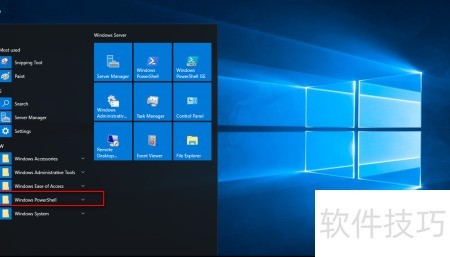
    4、 在Windows系统中,进入PowerShell文件夹,定位并找到PowerShell应用程序。
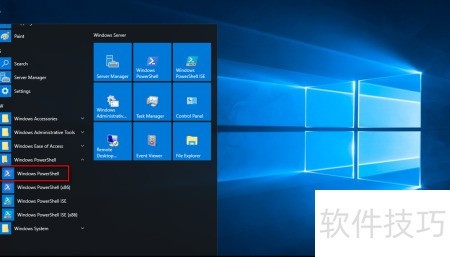
    5、 单击开始菜单中的程序图标,PowerShell窗口便会自动启动。
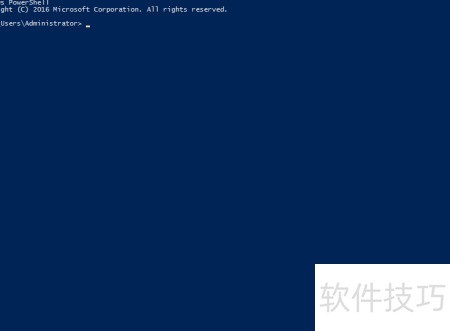
    6、 在PowerShell界面中显示有微软的版权信息声明。

    soft.zol.com.cn true https://soft.zol.com.cn/1128/11280147.html report 683 此前已介绍过Windows 7和Windows Server 2012中打开PowerShell的方法。随着技术发展,微软已推出更新的服务器操作系统——Windows Server 2016。那么,在这一新版本中该如何启动PowerShell?本文将为您详细介绍具体操作步骤,帮助您快速掌握在Windows Server 2016环境下...
    不喜欢(0) 点个赞(0)
    随时随地资讯查报价 就上ZOL手机客户端,点击或扫描二维码下载
    立即下载

    Windows PowerShell(KB926140) 1.0

    更新时间:2011年12月26日

    用户评分:0 | 0人点评

    软件类型:免费软件

    软件语言:简体中文

    Windows PowerShell(KB926140) 1.0
    • 更新时间:2011年12月26日
    • 软件大小:1.7MB
    • 软件分类:优化软件
    • 语言种类:简体中文
    • 软件评级:0 人点评